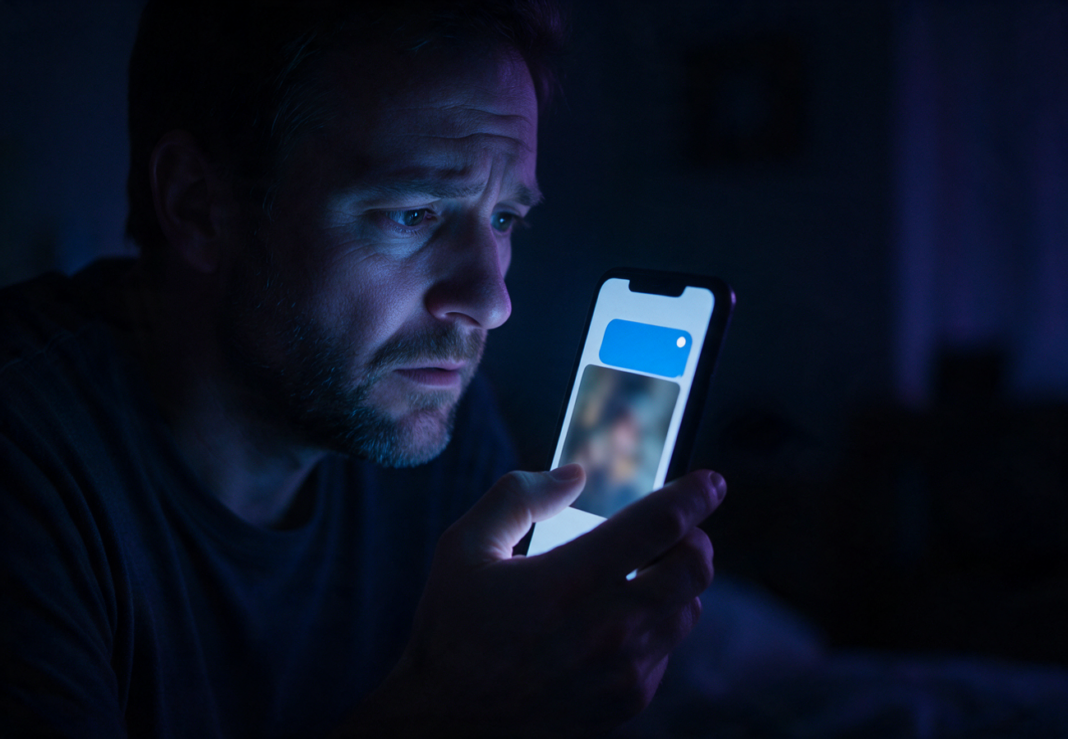

To spy on you, it is not necessary to be an expert in hacking. Almost always, it is enough to have your code, your account, or a permission you granted a long time ago and no longer remember. Let’s close those doors.
When someone thinks about their mobile being spied on, they imagine a virus taken from a movie. In practice, the most common is much closer: an ex-partner who knows your code, a shared Apple account “for convenience”, a location you left open, or a profile installed on the phone without your knowledge.
It is the form of control that is least noticeable and the hardest to recognize when you are the one suffering it. A government report with data from 2025, published in March 2026 and collected by Aragón Digital, estimates that 2,675,518 women suffered digital control in Spain (13.7%). It measures women, so it does not reflect what gay men, trans people, or non-binary individuals experience in our relationships, but the mechanics are the same. I already mentioned it when talking about how you can be spied on through Grindr or TheBlowers and intragender violence.
As president of the Rainbow eSafe Association and a computer expert, I propose five checks. They take about twenty minutes and you can do them today.
1. No one should know your code (and add an extra shield)
Everything else falls apart if another person knows how to unlock your iPhone. It could be your ex-partner, someone you lived with, or a friend who “saw you type it”.
- Change your code to one that no one knows and that is not your birthday or 1234.
- Activate the Device Theft Protection (in Settings > Face ID & Code). It works with iOS 17.3 or later and requires Face ID or Touch ID, not just the code, for sensitive actions like viewing saved passwords. It also imposes a one-hour wait for changes like your Apple account password.
An important detail: by default, this protection only applies when the iPhone is away from usual places like your home or work. If the risk is someone who lives with you or has access to your home, in “Require security delay” choose Always.
2. Check who sees where you are
This is the check that gives the most surprises. There are locations shared years ago with a previous partner that are still active.
- Open the Find app and go to People: there you see with whom you share your location.
- To stop sharing with someone, tap their name and choose Stop sharing my location.
- To cut off everyone at once, go to Me and turn off Share my location.
Apple warns that people you stop sharing with may notice. If you share with someone dangerous, think about your safety before making the change. If you have doubts, write to us first.
3. Your Apple account is the key to everything
Whoever enters your account can access your backups, your photos, and your location without touching your phone.
- Use a unique password, one that you haven’t used on other websites, and that no one knows.
- Have two-step verification activated. When someone tries to enter from a new device, you receive a notification on your other devices with an approximate map, based on the network they are connecting from. If you don’t recognize it, tap Don’t allow and take a screenshot before closing the notification.
- Check which devices have your account open: in Settings, tap your name and scroll down to the list of devices. If you see one you don’t recognize, open it and tap Remove from account.
4. Look for what shouldn’t be there
This is the part that almost no one checks:
- Configuration profiles. They are designed for companies and educational institutions to manage devices, but they can also give access to your data or location. If you are not working with a company iPhone and one appears, it is a red flag. Check them in Settings > General > VPN and Device Management. If there is nothing, none are installed. Before deleting it, keep in mind that whoever put it there may notice.
- Trackers. If an AirTag or another accessory from the Find network moves with you for a while without being yours, your iPhone will alert you with a message like “AirTag detected near you”. For it to work, you need to have Bluetooth, Location Services, and tracking notifications active, and airplane mode turned off. If you receive the alert, do not ignore it, even if it feels tedious: tap and make it sound.
- Apps you didn’t install. Review the list and be suspicious of those with a generic name or that you don’t remember downloading.
If you feel in danger, Apple recommends going to a public and safe place and contacting the police.
5. The emergency button: the Security Review
With iOS 16 or later, the iPhone comes with a tool designed for this: Settings > Privacy and Security > Security Review.


It has two modes:
- Emergency reset: abruptly cuts off what you share with all people and applications, and lets you review your emergency contacts, the devices on your account, and your password.
- Manage sharing and access: you review step by step with whom you share each thing and what apps have permissions.
There is a Quick Exit button in the upper right corner: it takes you out of Settings instantly if someone approaches while you are doing it.
That said, Apple itself warns of what it does not cover: accounts that are not Apple (social networks, email, other apps), devices with another Apple account, or what is on an iPad or Mac. And there may be limited options if someone has set restrictions or a management profile on your phone.
What they don’t tell you: before deleting, save
Here comes what matters most to me as a computer expert. If you truly suspect that you are being spied on, your instinct will be to delete everything, reset the phone, and start from scratch. Don’t do it yet.
- Take screenshot of the alert, the strange profile, the unknown device, with visible date and time.
- The screenshot is a good first piece of evidence, but it is only the first step. For it to serve in a complaint or procedure, you must certify the authenticity of the digital evidence: leave a technical record of what is on your device, where it came from, and when it was collected. A reset without that phase can destroy exactly what would prove who is behind it.
- At the Rainbow eSafe Association, we have tools to certify the authenticity of your digital evidence. Write to us before deleting anything.
The counterargument that must be acknowledged
You might think that all of this is excessive: that your ex-partner wouldn’t be capable, that no one knows your code, or that reviewing permissions is obsessive. And it is true that not everyone is a threat and that you don’t have to live in paranoia.
But each of these five checks is done once and takes minutes. The alternative, discovering that someone has been watching where you are for months, costs much more. People who end up in that situation almost never expected it to happen to them.
Summary to take with you
🔐 1. Your code, only yours
If someone knows it, everything else falls apart. Change it and activate the Device Theft Protection.
📍 2. Who sees you on the map
Go to Find > People and cut off what you shared years ago and is no longer necessary.
🗝️ 3. The master key: your Apple account
Unique password, two steps, and a list of devices without intruders.
🕵️ 4. Hunt the hidden
Strange configuration profiles, trackers traveling with you, and apps you don’t remember installing.
🚨 5. Your emergency button
The Security Review abruptly cuts off what you share. But before deleting anything: save and certify the evidence.
If any of this sounds familiar and you need us to accompany you, at the Rainbow eSafe Association we are here to help you, without judging you. Write to us at rainbowesafe.com/contacto.